

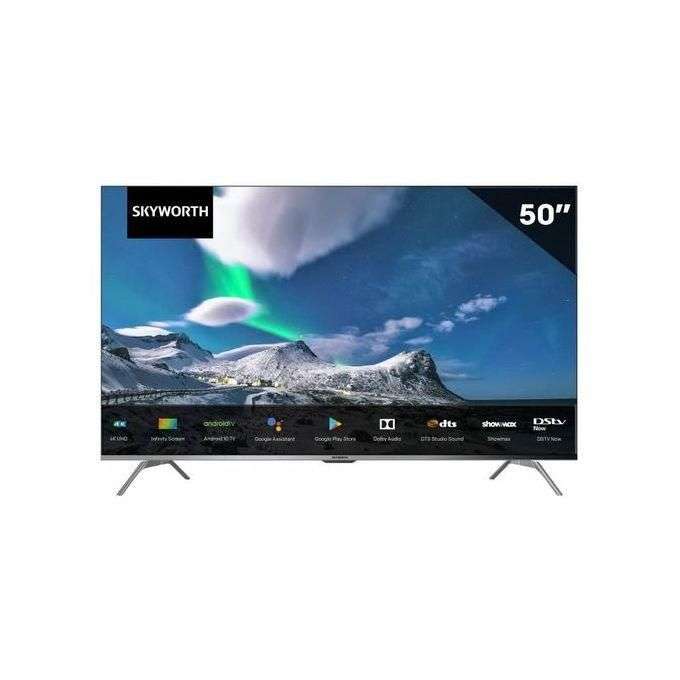
Description
For the Skyworth 50G3A 50'' Smart 4K UHD Android TV, the remote control functions similarly to other Android TV remotes, offering intuitive navigation and access to various features. Here's a guide on how to use it:Power On/Off: Use the power button to turn the TV on or off.Navigation: Use the directional arrows (up, down, left, right) to navigate through menus, apps, and options on the screen.Selecting/Confirming: Press the central button (often labeled "OK" or "Enter") to select options, confirm actions, or open apps.Volume Control: Use the volume up (+) and volume down (-) buttons to adjust the volume level.Channel Control: If your TV receives traditional broadcast signals, you may have dedicated buttons for channel up and down to switch between channels.Input Selection: There might be a button to toggle between different input sources like HDMI, AV, or USB.Menu Access: Press the menu button to access the TV's settings menu, where you can adjust various settings such as picture, sound, network, and more.Smart Features: Access smart features like streaming apps (such as Netflix) by pressing the dedicated buttons or navigating through the TV's interface.Google Assistant (if available): Some remotes come with a dedicated Google Assistant button for voice commands and queries.Home and Back Buttons: Use the home button to return to the Android TV home screen and the back button to navigate back in menus or apps.App Shortcut Buttons (if available): Some remotes have dedicated buttons for launching specific apps or shortcuts.Additional Functions: Depending on your TV model and remote design, there might be additional buttons for specific functions such as playback controls for media content, sleep timer, info display, or subtitle options.
0
Average Rating
(0 Review)
0%
0%
0%
0%
0%
To give a review, you need to login first.
LoginProduct Reviews
This product has no reviews.
Let others know what do you think and be the first to write a review.
Messages